
Make it yours.
Choose a layout, add your details, and give a useful little print some personality.
In this guide

Start with a template
Open the Template library to browse designs by use and style. Open a design to inspect its print preview, then choose Use template to save it in your workspace.
On the template’s Print tab, fill in the fields under Make it yours. Select your printer, check the preview, and choose Print template. Your saved templates stay in Templates for next time.
What makes a designed print different
Designed templates are rendered into complete monochrome images. Each preset can have its own fonts, illustrations, spacing, and decorative elements. The printer receives the rendered image, so the design is not limited to its built-in text fonts.
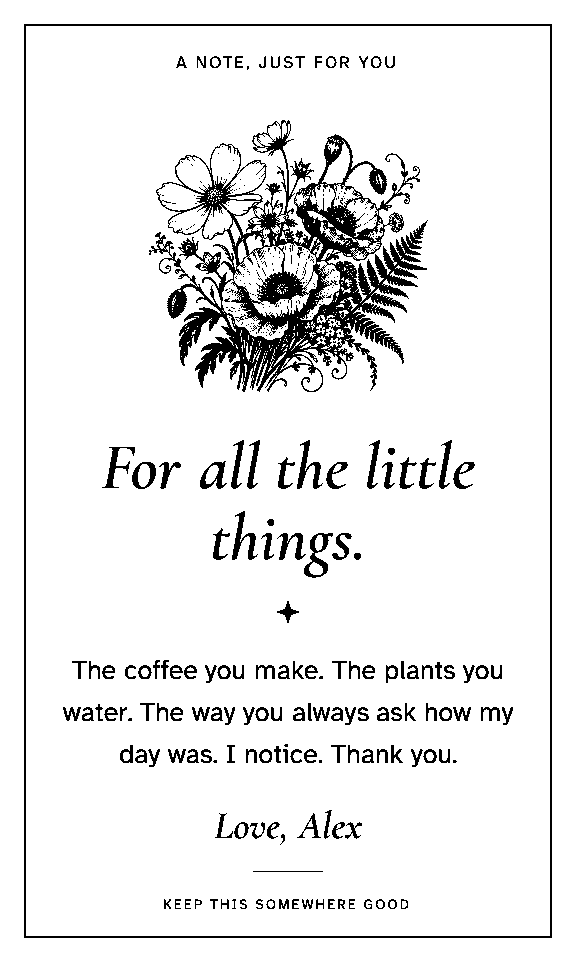
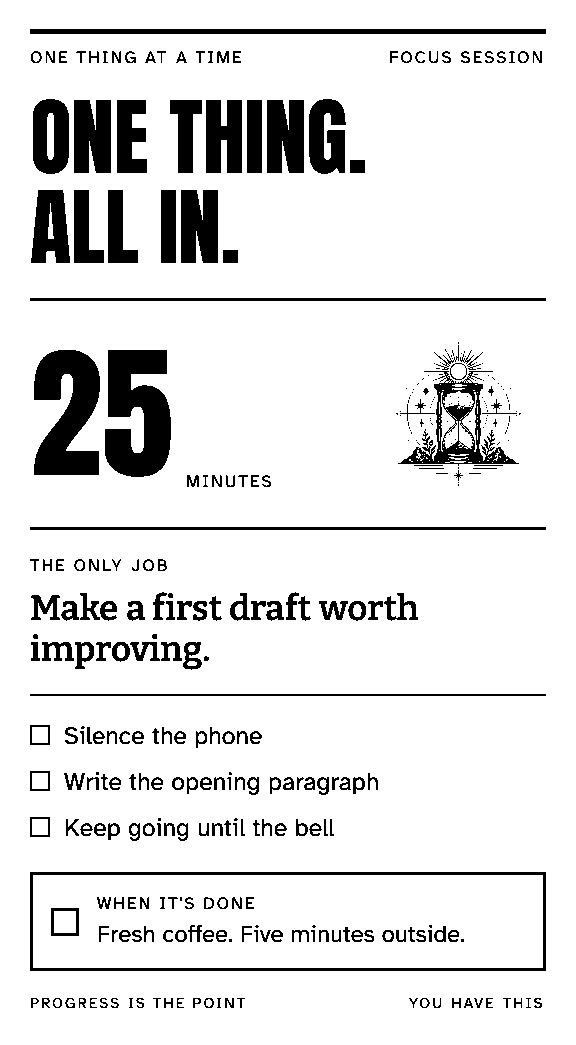
Use the paper-width preview to see how the design adapts to 58 mm or 80 mm paper. Fine details depend on the printer’s resolution, darkness settings, and paper.
Change the details, keep the design
Use the template’s form to change its content without rebuilding its layout. On Edit template, designed presets expose their available content fields and design controls. Save and publish your changes when the preview is ready.
For text templates, you can edit the Handlebars template, its input schema, and its sample values. Publishing makes that version available for printing and automations. A draft preview is a place to check changes before publishing.
Designed presets provide their own layouts and fonts. They are not a general-purpose HTML editor. For a completely custom design from another tool, render it to an image and upload it with New print.
Add an illustration
Where a template supports an illustration, open the artwork picker to browse the reusable black-and-white collection. Choose an image that fits the print, then use the preview to check its size and placement.
The artwork library is designed to be reused. Selecting an illustration does not generate a new image or change the underlying icon set.
Check the finished job
Open Print history to see recent jobs, their status, the destination printer, and the saved print preview. The job keeps the content it was created with, so later template edits do not rewrite old prints.
Ready to reuse a design automatically? Set up a schedule or connect another app.